Shortcodes and blocks
Reference for the wkjb_jobs, wkjb_filters, wkjb_job and wkjb_apply shortcodes and matching blocks, with every attribute for the job list and filters.
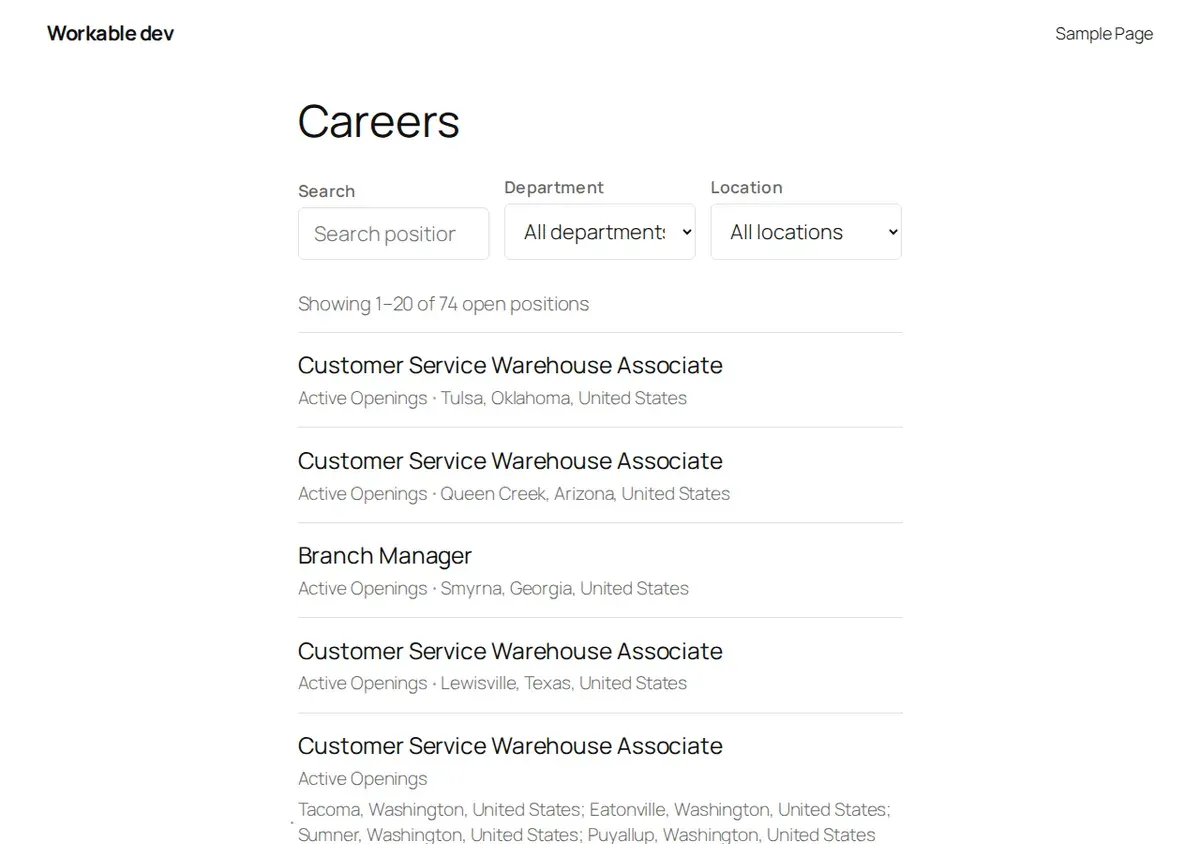
You get a job list at /jobs/ without doing anything. Use these shortcodes and blocks to put
jobs anywhere else: a careers page you designed yourself, a sidebar, a landing page.
In the block editor, the same four pieces are blocks: search the inserter for “Job” to find Job List, Job Filters, Single Job and Job Application Form. Each block shows a live preview of what it will render. Single Job and Job Application Form take the Workable job ID in the block settings sidebar; Job List lets you set the number of jobs per page and a department or location there. Every other attribute below keeps its default in a block; use the shortcode when you need one of those.
| Shortcode | What it shows | Block name |
|---|---|---|
[wkjb_jobs] | The job list | wkjb/job-list |
[wkjb_filters] | The search and filter form | wkjb/job-filters |
[wkjb_job] | One job | wkjb/single-job |
[wkjb_apply] | The apply area for one job | wkjb/application-form |
Yes/no attributes take yes or no.
[wkjb_jobs] — job list
| Attribute | Default | What it does |
|---|---|---|
per_page | 20 | Jobs per page. |
columns | 1 | Grid columns, 1 to 4. |
department | empty | Show only one department. Takes the department name, for example department="Engineering". |
office | empty | Show only one location. Takes the location name as shown in the filter dropdown. |
search | empty | Show only jobs matching this text in the title, location, description or department. |
show_filters | no | Show the search and filter form above the list. |
show_count | yes | Show “Showing 1–20 of 74 open positions”. |
show_pagination | yes | Show page links when there is more than one page. |
show_location | yes | Show each job’s location. |
show_department | yes | Show each job’s department. |
show_date | no | Show each job’s posting date. |
show_excerpt | no | Show a short excerpt of each job’s description. |
group_by | empty | department or office groups the list under headings. |
board | empty | Leave empty. 1.0 connects one Workable account. |
Jobs are sorted newest first.
Examples:
[wkjb_jobs show_filters="yes"]
[wkjb_jobs department="Engineering" per_page="5" show_count="no" show_pagination="no"]
[wkjb_jobs columns="2" group_by="department" show_excerpt="yes"]
When department, office or search is set on the shortcode, it wins over what the visitor
picks in the filter form.
[wkjb_filters] — search and filter form
A standalone filter form, for when you want the form somewhere other than directly above the list, such as a sidebar.
| Attribute | Default | What it does |
|---|---|---|
show_search | yes | Show the search box. |
show_department | yes | Show the department dropdown. |
show_office | yes | Show the location dropdown. |
board | empty | Leave empty. |
The dropdowns list only departments and locations that have an open job. The form submits to
the page it sits on, using the query parameters wkjb_search, wkjb_department and
wkjb_office, so put a [wkjb_jobs] list on the same page. Pagination uses wkjb_page.
[wkjb_job] — a single job
| Attribute | Default | What it does |
|---|---|---|
id | empty | The job’s Workable shortcode, the 10-character code at the end of its address, such as id="B4E3109622". Case does not matter. Empty uses the job being viewed. |
show_title | no | Show the job title as a heading. |
show_meta | yes | Show department, location, employment type, remote and posting date. |
show_apply | yes | Show the apply area: the on-site form or the Apply on Workable button. |
board | empty | Leave empty. |
You can find a job’s shortcode at the end of its address on your site, for example
/jobs/branch-manager-b4e3109622/, or in the job’s link inside Workable.
[wkjb_apply] — the apply area on its own
| Attribute | Default | What it does |
|---|---|---|
id | empty | The job’s shortcode. Empty uses the job being viewed. |
board | empty | Leave empty. |
It shows the on-site application form when applications are taken on your site, and the Apply on Workable button otherwise. See On-site applications.
Styles
The plugin’s stylesheet loads on the jobs pages and on any page whose content contains a
[wkjb_ shortcode or a wkjb/ block. If you print a shortcode from a theme template or a page
builder, the plugin may not detect it. Force the stylesheet on with:
add_filter( 'wkjb_enqueue_frontend_assets', '__return_true' );